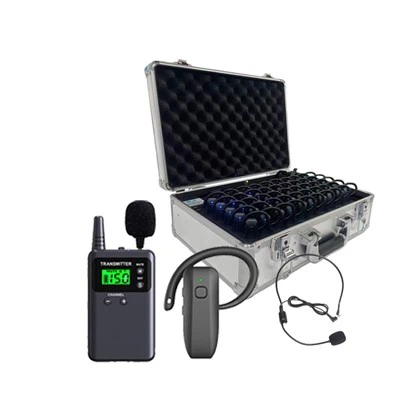
Hey there! As a supplier of wireless tour guide systems, I often get asked about how to update the firmware of these nifty gadgets. Firmware updates are super important as they can enhance the performance, add new features, and fix any bugs in your system. So, let's dive right into it and learn how to update the firmware of a wireless tour guide system.
Why Update the Firmware?
Before we get into the how-to, let's talk about why you should bother updating the firmware in the first place. Think of firmware as the software that runs your wireless tour guide system. Just like your phone or computer needs software updates, your tour guide system benefits from firmware updates too.
- Improved Performance: Updates can optimize the system's performance, making it run smoother and faster. This means less lag and better audio quality for your tours.
- New Features: Manufacturers often add new features in firmware updates. You might get access to things like better battery management, additional language support, or enhanced connectivity options.
- Bug Fixes: Bugs can cause all sorts of problems, from audio glitches to connection issues. Firmware updates can patch these bugs and keep your system running reliably.
Step 1: Check for Updates
The first thing you need to do is check if there's an update available for your wireless tour guide system. Most of the time, you can do this through the manufacturer's website. Head over to our website and look for the support or downloads section. There, you'll find a list of firmware updates for different models of our Tour Guide System for Cruise Ship Sightseeing.
If you're not sure which model you have, you can usually find the model number on the device itself. It might be printed on the back or bottom of the unit. Once you've located the right update for your model, download it to your computer.
Step 2: Prepare Your System
Before you start the update process, it's important to prepare your wireless tour guide system. Here's what you need to do:
- Charge the Devices: Make sure both the transmitter and the receivers are fully charged. An interrupted update due to a low battery can cause problems, so it's better to be safe than sorry.
- Backup Your Data: If you have any custom audio files or settings on your system, it's a good idea to back them up. You can do this by transferring the files to your computer using a USB cable.
- Connect to a Stable Network: If the update requires an internet connection, make sure you're connected to a stable Wi-Fi network. A weak or interrupted connection can lead to a failed update.
Step 3: Update the Transmitter
The transmitter is the central device in your wireless tour guide system. It sends the audio signal to the receivers. Here's how you can update its firmware:
- Connect the Transmitter to Your Computer: Use a USB cable to connect the transmitter to your computer. Make sure the cable is securely plugged in.
- Run the Update Software: Once the transmitter is connected, run the firmware update software that you downloaded from our website. Follow the on-screen instructions carefully. The software will detect the connected device and start the update process.
- Wait for the Update to Complete: The update process might take a few minutes, depending on the size of the update. Don't disconnect the transmitter or turn off your computer during this time. Once the update is complete, the transmitter will restart automatically.
Step 4: Update the Receivers
After updating the transmitter, it's time to update the receivers. The receivers are the devices that your tour participants use to listen to the audio. Here's how you can update them:
- Connect the Receivers to the Transmitter: Turn on the transmitter and the receivers. Make sure they are paired correctly. You can usually do this by following the pairing instructions in the user manual.
- Initiate the Update on the Receivers: Once the receivers are connected to the transmitter, the update will be automatically pushed to the receivers. You might see a notification on the receivers indicating that an update is available. Follow the on-screen instructions to start the update process.
- Wait for the Update to Finish: Just like with the transmitter, the update process for the receivers might take a few minutes. Don't turn off the receivers or the transmitter during this time. Once the update is complete, the receivers will restart automatically.
Step 5: Test the System
After updating the firmware of both the transmitter and the receivers, it's important to test the system to make sure everything is working properly. Here's what you can do:
- Play Some Audio: Turn on the transmitter and play some audio through it. Make sure the audio is clear and there are no glitches or interruptions.
- Check the Connectivity: Walk around with the receivers and make sure they stay connected to the transmitter. You can also try moving to different areas to test the signal strength.
- Verify the New Features: If the firmware update added any new features, make sure to test them out. For example, if there's a new language support option, try switching to a different language and see if it works.
Troubleshooting
Sometimes, things might not go as smoothly as planned. Here are some common issues you might encounter during the firmware update process and how to fix them:
- Update Failed: If the update fails, try restarting the device and the computer. Make sure the device is properly connected to the computer and that you have a stable internet connection. If the problem persists, contact our customer support team for assistance.
- Audio Issues: If you experience audio issues after the update, try resetting the system to its default settings. You can usually do this by following the instructions in the user manual. If the problem still exists, check the audio settings on the transmitter and the receivers.
- Connectivity Problems: If the receivers are not connecting to the transmitter, make sure they are paired correctly. You might need to unpair and pair the devices again. Also, check the signal strength and make sure there are no obstacles between the transmitter and the receivers.
Conclusion
Updating the firmware of your wireless tour guide system is a simple process that can bring a lot of benefits. By following the steps outlined in this blog post, you can ensure that your system is up-to-date and running at its best.


If you're in the market for a new wireless tour guide system, we offer a wide range of options, including the Audio System for Guides, Strong Signal Tour Guide System, Lightweight Tour Guide System, and Tour Guide System for Training.
If you have any questions or are interested in purchasing our products, feel free to reach out to us. We're here to help you find the perfect tour guide system for your needs.
References
- Manufacturer's user manual for wireless tour guide systems.
- Technical support documentation from the manufacturer.